
HA-Connect runs on Claris FileMaker. You can always open it in a web browser, but the native app is faster and easier on a phone or tablet. This page walks through installing the app and connecting it to HA-Connect. Setup takes about 15 minutes and only has to be done once.
Why use the app?
- Faster log-in and data load times
- A better interface and experience on a phone or tablet
- Device-specific features
- On-device password management
Compatibility
Highlander Auditorium uses Claris FileMaker to manage all of its data for call sheets, reports, and operations. Everything you use on HA-Connect is created and maintained in that application.
The mobile app, Claris FileMaker Go, is available for iPhone and iPad only. On Android or any other device, use HA-Connect in your web browser instead.
Mobile setup
When you first open the app, you need to add the HA-Connect server. You only do this once.
Add the server
Step 1
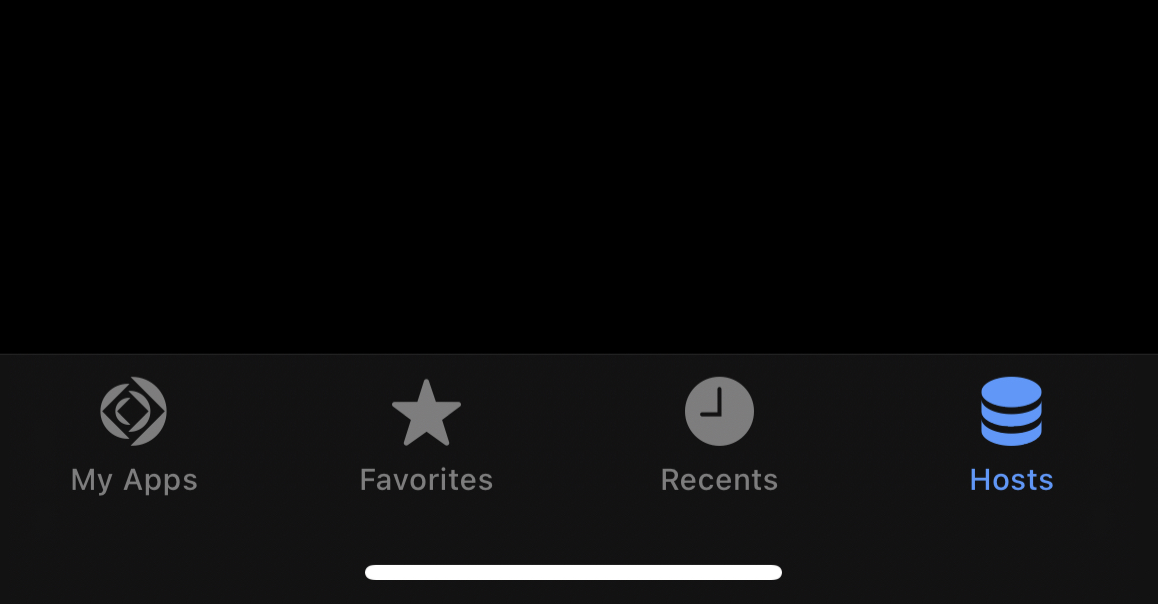
Go to the Hosts tab in the bottom navigation bar.
Step 2
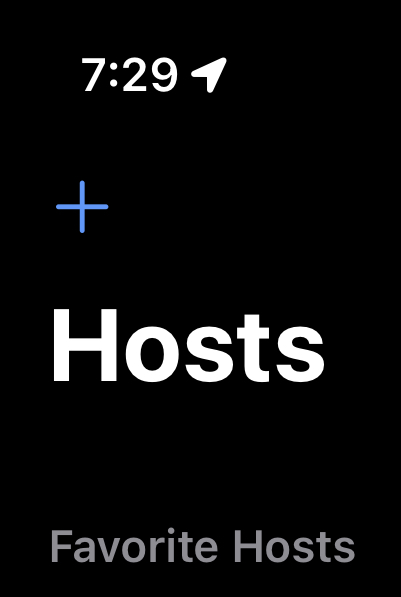
Tap the plus button in the top left corner.
Step 3
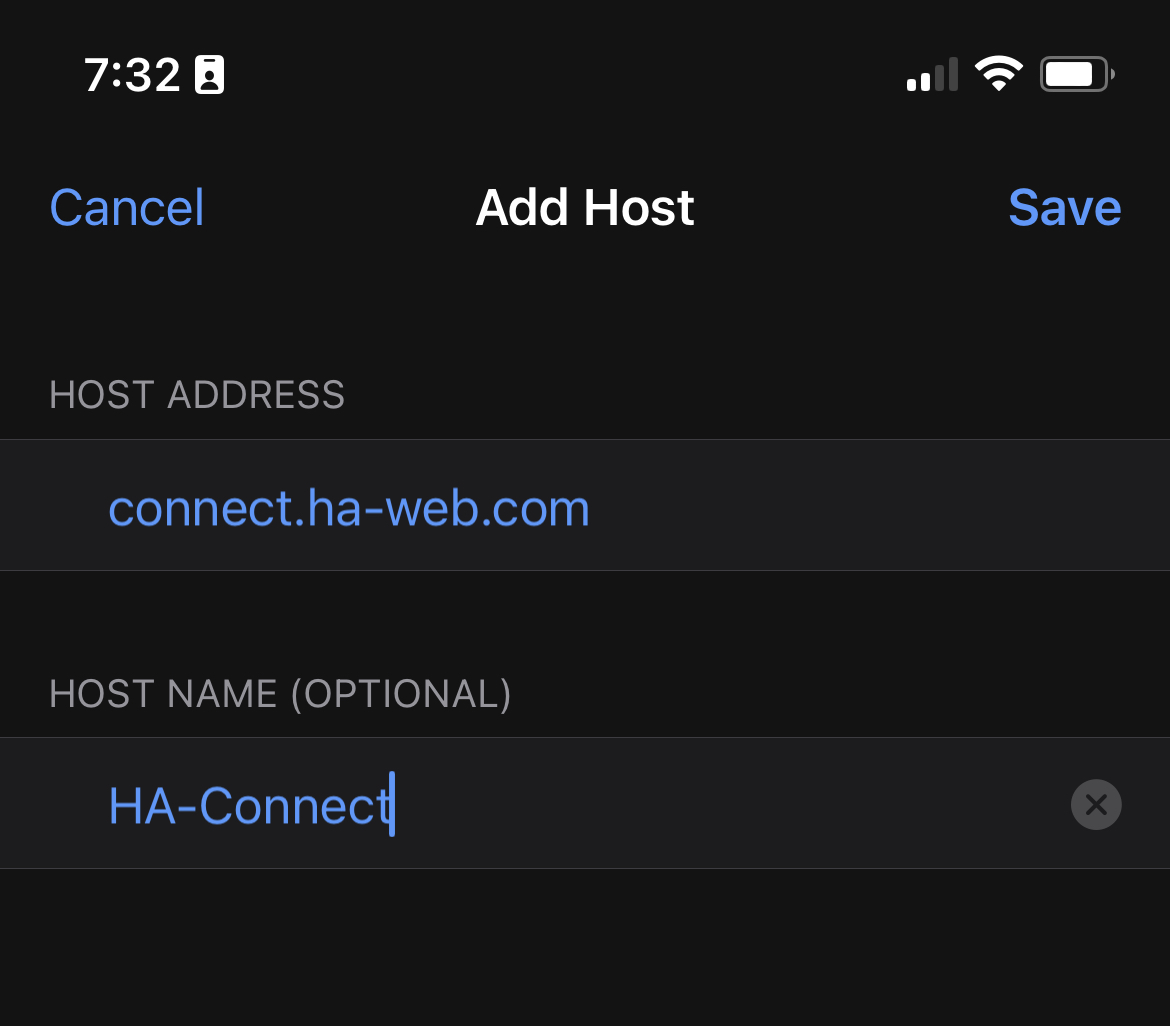
Enter the host address connect.ha-web.com and the host name HA-Connect, then tap Save.
You will now see a list of applications on the server. The one staff and students use is HA-Connect. You can get back to this screen any time from the Hosts tab.
Add HA-Connect to your favorites
To make it quicker to open, add the HA-Connect application to your favorites.
Step 4
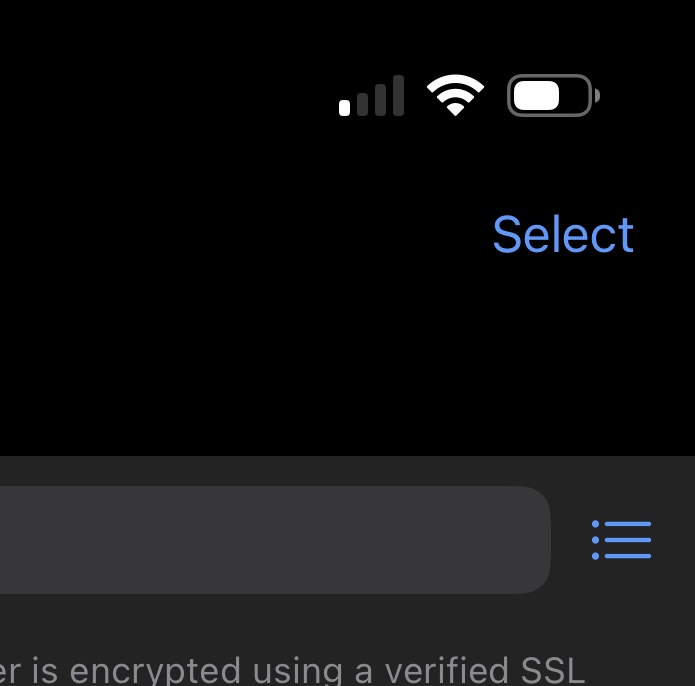
Tap the Select button in the top right corner.
Step 5
Tap the HA-Connect application.
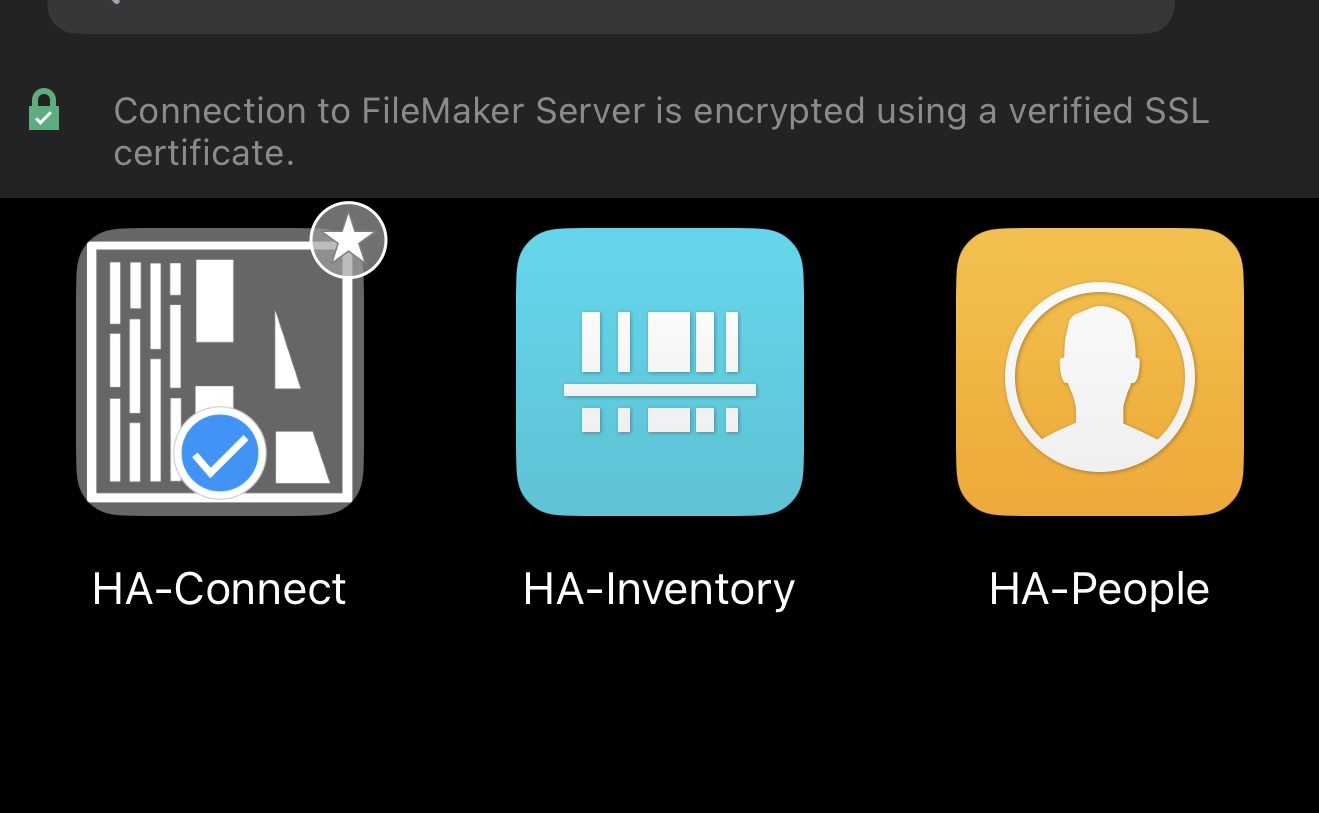
Step 6
Tap the star button in the navigation bar.

HA-Connect will now appear in the Favorites tab of the bottom navigation bar.
Need help?
Call the office at (909) 985-9462.